One of the common use-cases is masking an image, meaning making a shape and drawing the image into that shape so that the image outside the shape is made transparent. You can do this with clipping if you can get the path of the shape, or you can use composition operations, or use a fill pattern image. Let's take a look at the last two...
The Mission
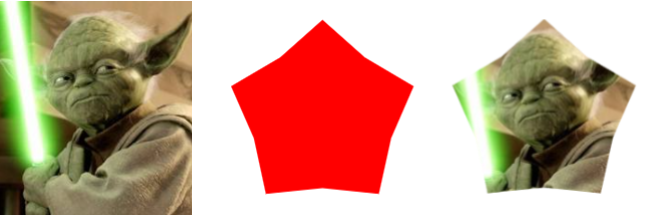
We have this image of Yoda, the red pentagon, and we want to get the Yoda inside the pentagon.
The masking solution
This is shown in the demo below.
Masking an image is straightforward, all we need to do is:
- Make a memory-stage to do the composing
- Draw the shape you want for the mask into the memory-layer - in the case of the demo it's the pentagon. Any pixels that are not transparent will receive the pixels from the image.
- Load the image you want to mask into a Konva.Image(), set its globalCompositeOperation to source-out, and add it to the memory-layer.
- Convert the memory-stage into an image
- Load this image into your main stage.
There's nothing more than that in terms of the technique. Here is the output of the demo. You'll notice that I put the masked image in the z-order of the shapes just to show that it is a first class Konva citizen.
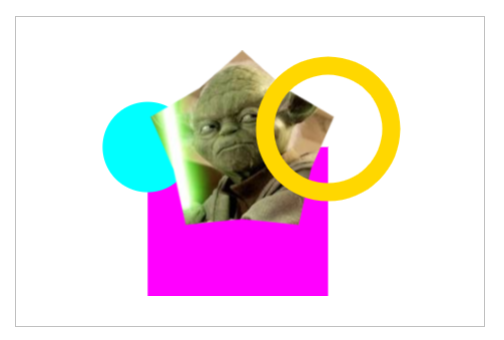
A couple of points worth keeping in mind are that image loading operations are async in JavaScript, and if you want to make the masked image draggable on the main stage but you want to be able to drag only from the non-transparent areas, then cache the image and set its drawHitFromCache() setting.
The fillPattern solution
The Konva docs have a good example of this here. The gist is to use the shape's fillPatternImage property. This property allows us to specify an image to be used as a pattern to fill the shape.
const patternPentagon = new Konva.RegularPolygon({
  x: 220,
  y: stage.height() / 2,
  sides: 5,
  radius: 70,
  fillPatternImage: yoda,
  fillPatternOffset: { x: -220, y: 70 },
  stroke: 'black',
  strokeWidth: 4,
  draggable: true,
});
Some notes for this one - the image is already loaded into the browser, and the fillPatternOffset is used to position the image to appear correctly in the pentagon. There are related options to control how the pattern repeats, plus its scale and rotation.
Summary
Image masking is a useful trick. We've seen in the demo code how it is simple to achieve and a masked image is a first-class Konva citizen. Even easier is the fillPatternImage approach. Which would I use? I like things simple, so most likely I would use FillPatternImage.
Thanks for reading.
VW July 2024