One of the common requirements we see coming through the Konva Discord channel is modifying the stock Transformer anchors with popular requests being how to change the anchors shape and colors, and how use an icon for the rotation anchors. Lets take a look...
TLDR: See the sample code in this Codepen.
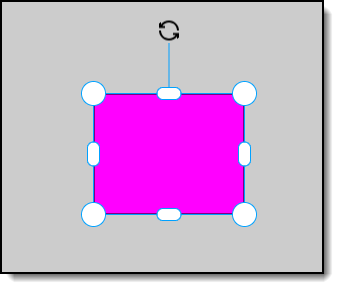
The styling applied to the anchors can be quite detailed, as shown below.
I should mention that I wrote another post about the Transformer here - this post you are reading is specifically intended to be a quick reference for anchor styling.
 VanquishedWombat
How the transformer is made?
The Konva.Transformer() is a component that is itself composed from Konva shapes. The 9 anchors are each an individual Konva.Rect(). If we can get a reference to the anchors then we can apply whatever attribute changes a Rect can use. So - how to get those anchors?
It turns out that the anchors are given names. You can think of names a bit like CSS classes, meaning that a shape can have multiple names - I wrote a post about this selectors approach in this blog post.
VanquishedWombat
The names assigned to the anchors are:
'top-left', 'top-center', 'top-right', 'middle-right', 'middle-left', 'bottom-left', 'bottom-center', 'bottom-right', and 'rotater'.
And we can use the transformer.find('.anchor') method to get a list of the anchors, or transformer.findOne('.rotater') to get a single node, and anchor.hasName('top-left') approach to determine which transformer anchor is current if we are looping through them.
You will see in the code that I am using two different approaches. For the sizing anchors I will use the Konva.Transformer.anchorStyleFunc() which allows us to set up a block of code that will run at creation of the Transformer, and it will be run for each anchor as it is created.
And for the rotater anchor I will be replacing the anchor with an image. Since images are potentially loaded async I need to take account of that fact. Ig in your csae you know for sure that the image is already in the browser when the transformer is created then you can move this part into the anchorStyleFunc code.
The mission
The mission is to:
- Make the corner anchors circular with a white background.
- Make the edge anchors more of a lozenge shape.
- Make the rotater anchor display an icon and remove its stoked edge.
Most of the construction of anchors is based on the size you want the anchor to use, so I introduce the anchorSize variable which I set to 24, which means they are based on a 24px square rect.
Here's the full code.
// Create the stage and a layer to draw on.
const stage = new Konva.Stage({
    container: "canvas-container",
    width: 650,
    height: 300,
    fill: "red"
  }),
  layer = new Konva.Layer(),
  rect = new Konva.Rect({
    draggable: true,
    x: 40,
    y: 100,
    width: 150,
    height: 120,
    fill: "magenta",
    stroke: "black",
    strokeWidth: 1
  }),
  anchorSize = 24,
  tr = new Konva.Transformer({
    anchorCornerRadius: anchorSize / 2,
    anchorSize: anchorSize,

    anchorStyleFunc: (anchor) => {
      // anchor is Konva.Rect instance
      // you manually change its styling

      if (anchor.hasName("top-center") || anchor.hasName("bottom-center")) {
        anchor.height(anchorSize / 2);
        anchor.offsetY(anchorSize / 4);
        anchor.width(anchorSize);
        anchor.offsetX(anchorSize / 2);
      }
      if (anchor.hasName("middle-left") || anchor.hasName("middle-right")) {
        anchor.height(anchorSize);
        anchor.offsetY(anchorSize / 2);
        anchor.width(anchorSize / 2);
        anchor.offsetX(anchorSize / 4);
      }
    }
  }),
  svg = `<svg xmlns="http://www.w3.org/2000/svg" viewBox="0 0 24 24" fill="currentColor"><path d="M12 4C9.25144 4 6.82508 5.38626 5.38443 7.5H8V9.5H2V3.5H4V5.99936C5.82381 3.57166 8.72764 2 12 2C17.5228 2 22 6.47715 22 12H20C20 7.58172 16.4183 4 12 4ZM4 12C4 16.4183 7.58172 20 12 20C14.7486 20 17.1749 18.6137 18.6156 16.5H16V14.5H22V20.5H20V18.0006C18.1762 20.4283 15.2724 22 12 22C6.47715 22 2 17.5228 2 12H4Z"></path></svg>`;

layer.add(rect, tr);

stage.add(layer);

tr.nodes([rect]);

// Load the image - in this case it is SVG from text but it could be a URL so
// we assume async behaviour.
let blob = new Blob([svg], { type: "image/svg+xml" });
let url = URL.createObjectURL(blob);

const icon = new Image();
icon.onload = function () {
  const anchor = tr.findOne(".rotater");

  if (anchor) {
    // generate anchor background
    const iconCanvas = document.createElement("canvas");
    iconCanvas.width = anchor.width();
    iconCanvas.height = anchor.height();

    const ctx = iconCanvas.getContext("2d");
    ctx.fillStyle = "transparent";
    ctx.fillRect(0, 0, iconCanvas.width, iconCanvas.height);
    ctx.drawImage(icon, 0, 0, iconCanvas.width, iconCanvas.height);

    anchor.stroke(null);
    anchor.offsetY(25);
    // enable icon
    anchor.fillPatternImage(iconCanvas);

    tr.update = function () {
      Konva.Transformer.prototype.update.call(tr);
      const anchor = this.findOne(".rotater");
      // switch of stroke
      anchor.stroke(null);

      // switch off fill
      anchor.fill(null);

      // move 25px up to clear the line
      anchor.offsetY(25);
    };
    tr.update();
    tr.getLayer().draw();
  }
};
icon.src = url;
The corner and edge anchors are styled in the anchorStyleFunc block. We use the hasName approach to recognise the corner versus the edge anchors and style appropriately.
Then in the image.onload() function we use the transformer.findOne approach to find the anchor named 'rotater', for which we load the icon image via a throwaway canvas then set that as the anchors fillPatternImage. We then subvert the transformers update method so that we can intervene on behalf of the rotater again to ensure that this anchors fill is always cleared. While we are there we clear the stroke too, and finally move the anchor slightly up to clear the connecting line that will otherwise overlap with the icon.
The final tr.update() and layer.draw() ensure that the first redraw takes effect as soon as it can. The code in the tr.update() is executed on each dragmove of the anchors or the transformer.
Summary
We've seen that the Konva.Transformer is built from standard Konva Rect shapes, and that we can use standard Konva shape filtering to isolate shapes by name and apply the desired style modifications. We've also seen how to add an icon for the rotater - you could of course take this approach with all of the anchors and add directional icons to those too.
If you are new to Konva or Transformers I urge you to skim-read those other two blog posts that I linked above. You'll need to know how the transformer affects size (hint - it doesn't, it affects scale!) and some of its other settings. Consider that your homework.
That's all there is to it.
Thanks for reading.
VW June 2024.