A common requirement is to have rulers along the edges of the view so that our users can position and size their stage contents accurately. But how can we set the size of these rulers when we don't know how big the stage might become? Taking inspiration from the article where I describe a solution for an infinite background, here is a solution for optimised infinite rulers.
TLDR: Here is the sample code at CodePen.
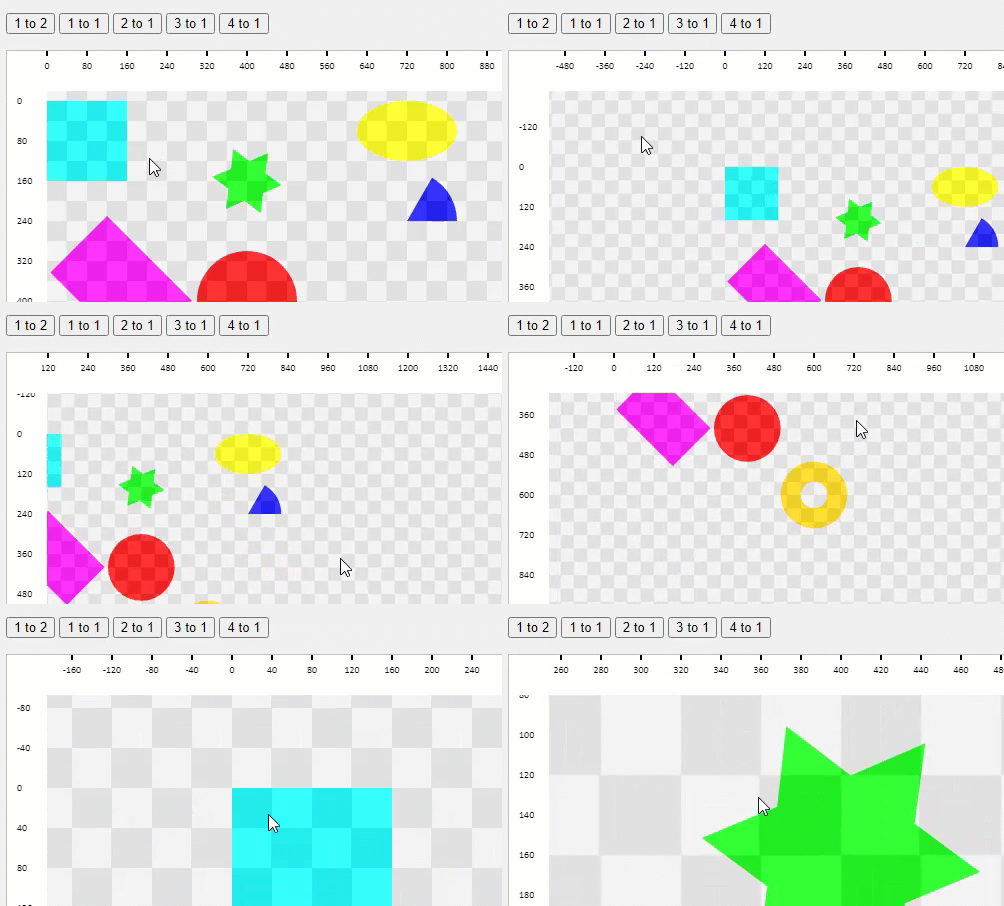
Requirement
The requirement is for rulers to be shown across the top and left edge of the canvas element. They should not scale - we want the text to be readable whatever the stage scaling. And they must not require a lot individual shapes, or any single massive shape. And they should not hurt performance. And, and, and....
The Solution
We can take inspiration from the core idea behind the infinite background technique. The concept there was to use the rect's fillPatternImage and its offset feature to fill a small rect that matches the size of the canvas (not the stage). When the stage is dragged we adjust the fillPattern offset in sympathy with the amount of movement, and we get a pleasing, apparently infinite background.
The nugget of the approach that we will steal is that concept of adjusting an offset to give the appearance of something infinite. And we can do some math to calculate the numbers to be displayed. The algorithm we want is something like what follows - this is for the x-axis but the same goes for the y:
- Get the width of the canvas
- Draw a rect that fills the full width and is as tall as the ruler needs to be
- Get the zero position in px on the ruler. Hint: this is the stage position, adjusted for scale.
- Decide what the tick-mark step distance will be in px for the tick marks to be drawn on the ruler.
- Find out how many steps are needed to match or exceed the distance from the ruler zero position. You want this in who steps - not fractions. If you need 3.7 then round up to 4. Call this the before-steps. This is important so as to keep it all looking smooth!
- Multiply the before-steps by the step distance to get the starting point in px for the ticks.
- Repeat for the distance from the zero to the end of the ruler rect. Call this the end-steps and compute that distance in px.
- Now you know the starting distance and number of steps to draw the tick marks on the ruler. Make the code for that, and also to show the numbers at the tick marks.
- Set a clipping area to chop off the tick marks that will overflow at each end of the ruler. This happens as a natural part of the step-based approach.
There are a couple of additional tricks in play that I should explain.
Fix the ruler in place and scale
We need the ruler to stay in the top-left of the canvas. But wait - it's on the stage like any other shape - well the layer but it is the same effect. We drag the stage, the layers move, the shapes on the layers move! We get over that by setting the position to the negative of the stage position, adjusted for scale.
Keeping the tick marks and numbers the same size
This we achieve simply by resetting the ruler scale to the opposite of the stage scale every time the stage scale is updated. If the stage scale is changed, then as long as we call the update for the ruler then it will reset its scale and everything stays readable.
There's one issue with this process. We've worked hard to make a ruler that only appears in the visible part of the stage. This optimises the shapes we require. But the ruler is only visible where the camera is looking - it is not drawn across the entire stage. When we snapshot the stage into an image only the part currently in view in the camera will have the ruler. My assumption is that a normal use-case for snapshotting would be to hide the rulers as the snap is taken.
However, if you need the rulers in place across the top and bottom of the snapshot then you can do some homework. The solution will likely be deciding the left-top edge for the rulers and how long they should be. The logic in the demo should work with those values plugged in for width and height. After the snapshot return them to the canvas values and the user will be unaware of what you did.
Summary
We've seen how to make infinite rulers. They are convenient and optimised for the minimum of shapes and shape size, therefore should be low-overhead additions to your app.
The demo code includes the infinite background but if you want an explanation of that then head over to the dedicated post the explains the infinite background technique.
Thanks for reading
VW March 2024