When you start zooming with Konva you pretty quickly get frustrated about how to zoom relative to the mouse position and not the top-left corner of the stage. Here's how to do that.
This is based on the demo in the Konva docs - I thought I would explain what's going on.
The main point is that if you change the magnification of an image (or stage in this case) and you want to keep a given point in the same position then the top-left of the image must be adjusted so that the point remains in position.
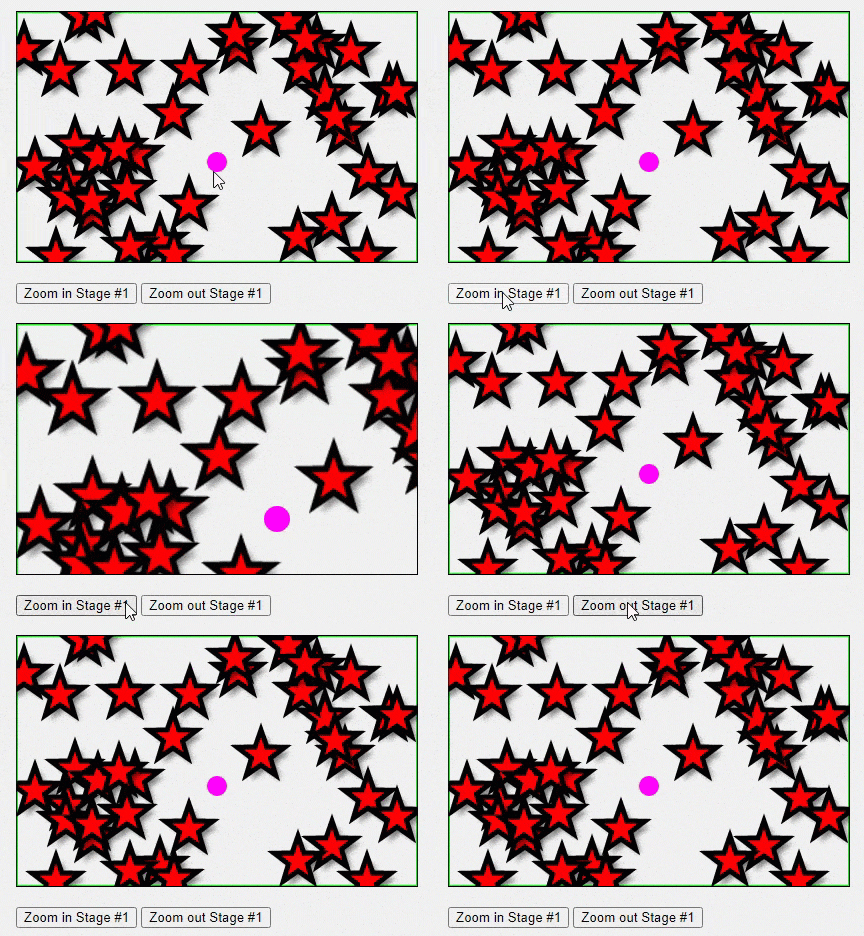
The following demonstrations are recorded from this CodePen. The zoom buttons are zooming in and out but we are not adjusting the stage position. Looking at the pink circle, it seems that it is sliding down and right as we zoom in.
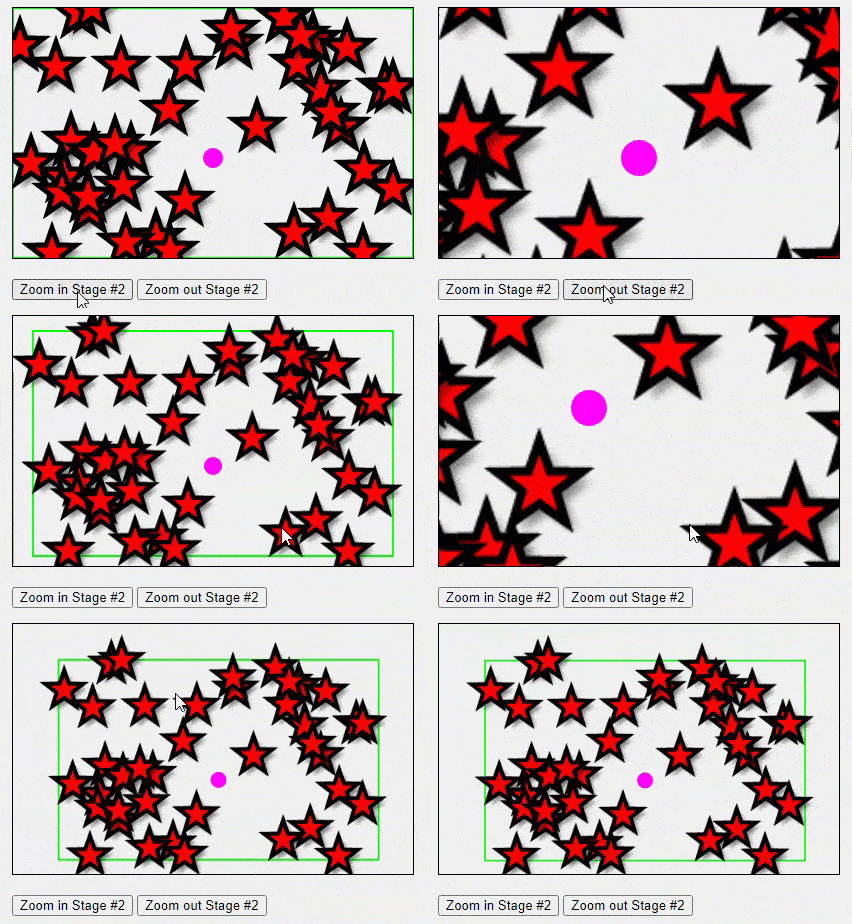
In the second case we apply logic to reposition the stage as part of the zoom process. The buttons now zoom the stage in and out around the pink dot, and the mouse buttons can be used to zoom at any arbitrary pointer position. The green border shows the extent of the stage and illustrates how the stage position is moved.
The code below is extracted from the CodePen where you can see it working. I've wrapped the zoom process into a single function that takes in the stage object, the zoom point, the zoom factor before the zoom is applied, and the amount to zoom to apply. It returns the new zoom factor.
/* Zoom the stage at the given position
  Parameters:
   stage: the stage to be zoomed.
   zoomPoint: the (x, y) for centre of zoom.
   zoomBefore: the zoom factor at the start of the process.
   inc : the amount of zoom to apply.
   returns: zoom factor after zoom completed.
*/
function zoomStage2(stage, zoomPoint, zoomBefore, inc) {
  // remember the scale before new zoom is applied - we are scaling
  // same in x & y so either will work
  let oldScale = stage.scaleX();

  // compute the distance to the zoom point before applying zoom
  var mousePointTo = {
    x: (zoomPoint.x - stage.x()) / oldScale,
    y: (zoomPoint.y - stage.y()) / oldScale
  };

  // compute new scale
  let zoomAfter = zoomBefore + inc;

  // apply new zoom to stage
  stage.scale({ x: zoomAfter, y: zoomAfter });

  // Important - move the stage so that the zoomed point remains
  // visually in place
  var newPos = {
    x: zoomPoint.x - mousePointTo.x * zoomAfter,
    y: zoomPoint.y - mousePointTo.y * zoomAfter
  };

  // Apply position to stage
  stage.position(newPos);

  // return the new zoom factor.
  return zoomAfter;
}
Summary
We've seen that although we can simply apply scale to the stage, because the stage is treated as a rectangle with it's drawing origin is the top-left position, the zoom effect also moves the stage contents left and upwards which is not what we want for good UX.
And we've seen that the solution to get the zoom to be applied from the mouse or any other point is to apply the zoom and adjust the top-left position to keep the image in the same place with reference to the given point.
That's all there is to it, thanks for reading.
VW July 2021
Photo by Daiga Ellaby from Unsplash+