Ever needed to put a direction of flow indicator on some connector line or path? In this post I explain a simple approach to get that done.
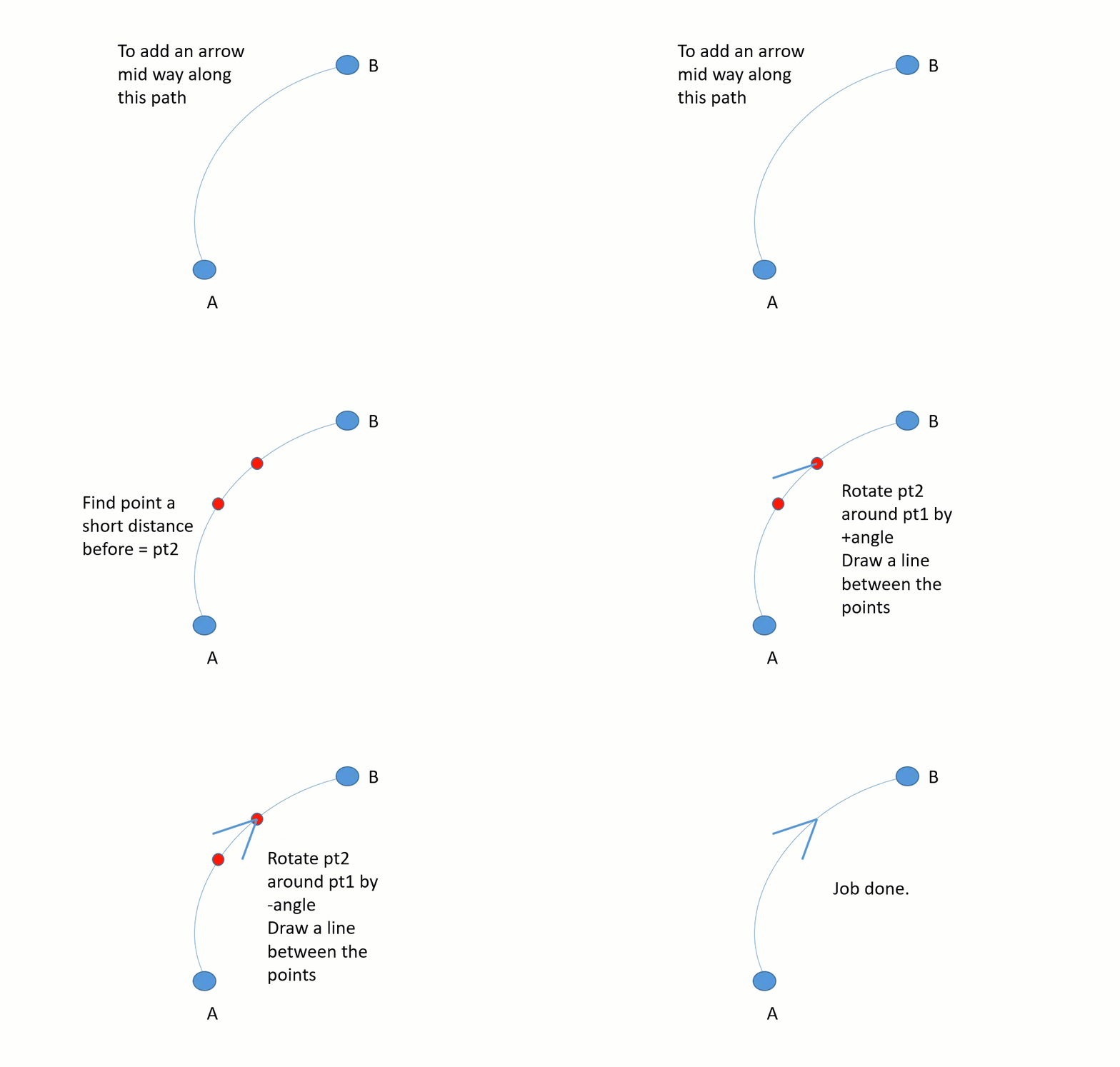
The trick here is being able to find the point on the line where the arrow head should be placed, then find a point a few pixels back from that along the path. Now calculate 2 points to give you the arrow corners - here's a sketch.
Most of the drawing commands for the HTML5 canvas break down to paths. Some requirements, like this one, lead to us needing to know the length of the path and the (x, y) point at some length along a path. You might think that the HTML5 canvas API would include those functions, but you'd be disappointed - it doesn't!
There's a good workaround if we can spend a short time converting our path canvas command into an SVG path command, because the SVG API does have exactly the methods we need. Fortunately the SVG and canvas 2D API path commands are very similar and this is easy to achieve.
Once we have the SVG path command, we can instantiate an SVG object (which we never add to the page DOM so little or no overhead) and ask it for the details that we need.
Lets start developing a function to get those arrow points. Here we are going to pass in the path data, the percent distance along the path where we want the arrow head to be placed, the arrow head side length, and the arrow head angle.
 function calculateArrow(pathData, percent, lengthPx, angle){

    // Create an <SVG:path> element to get the path length
    // and the various points at a given distance
    const pathEle = document.createElementNS("http://www.w3.org/2000/svg", "path");

    pathEle.setAttribute("d", pathData);

    const totalLength = pathEle.getTotalLength();
    let distance = totalLength * percent / 100

    // get the point at the head of the arrow.
    const headPt = pathEle.getPointAtLength(distance)

    // get the point at the tail of the arrow.
    distance = distance - lengthPx
    const tailPt = pathEle.getPointAtLength(distance)

    ...
  }
We ask the SVG element to give us the path length, then use that to get the (x, y) point at our chosen distance percentage. This is stored as headPt. We then repeat the process using the slightly shorter path distance to get tailPt.
 function calculateArrow(pathData, percent, lengthPx, angle){

    // Create an <SVG:path> element to get the path length
    // and the various points at a given distance
    const pathEle = document.createElementNS("http://www.w3.org/2000/svg", "path");

    pathEle.setAttribute("d", pathData);

    const totalLength = pathEle.getTotalLength();
    let distance = totalLength * percent / 100

    // get the point at the head of the arrow.
    const headPt = pathEle.getPointAtLength(distance)

    // get the point at the tail of the arrow.
    distance = distance - lengthPx
    const tailPt = pathEle.getPointAtLength(distance)

    // We can now rotate the tail point by the arrow head angle + and - to get the arrow corner points.

    const pts = []
    pts.push(headPt)
    pts.push(this.rotatePoint(tailPt.x, tailPt.y, headPt.x, headPt.y, angle))
    pts.push(this.rotatePoint(tailPt.x, tailPt.y, headPt.x, headPt.y, -angle))

    return pts
  }
Next we push into the pts array the headPt, and then the tailPt rotated around the headPt by plus and minus the arrow head angle.
The function to rotate one point around another is as follows:
  function rotatePoint(pointX, pointY, originX, originY, angle) {
    angle = angle * Math.PI / 180.0;
    return {
        x: Math.cos(angle) * (pointX-originX) - Math.sin(angle) * (pointY-originY) + originX,
        y: Math.sin(angle) * (pointX-originX) + Math.cos(angle) * (pointY-originY) + originY
    };
  }
We get back an array of 3 (x, y) points which give the position of the head of the arrow and the end points of the two sides. We can draw lines between these points as needed to get the arrow affect that we want.
Summary
We've seen that we can use the SVG element to get the length of a path and the
(x, y) point at any distance along the path. We used that to get the head and tail points for an arrow, then used the rotate-one-point-about-another function to flip out the side points of the arrow head.
We can use those points with a grouped Konva.Path or Konva.Line, or inside a Konva custom shape that uses canvas API commands in its sceneFunc, or even without Konva using only canvas API commands.
Depending on how we draw it, we can make an unfilled or a solid arrow, aligned with the path, using this approach.
Thanks for reading.
VW Oct 2024.